How to measure a lawn in 60 seconds with PoweredQuip
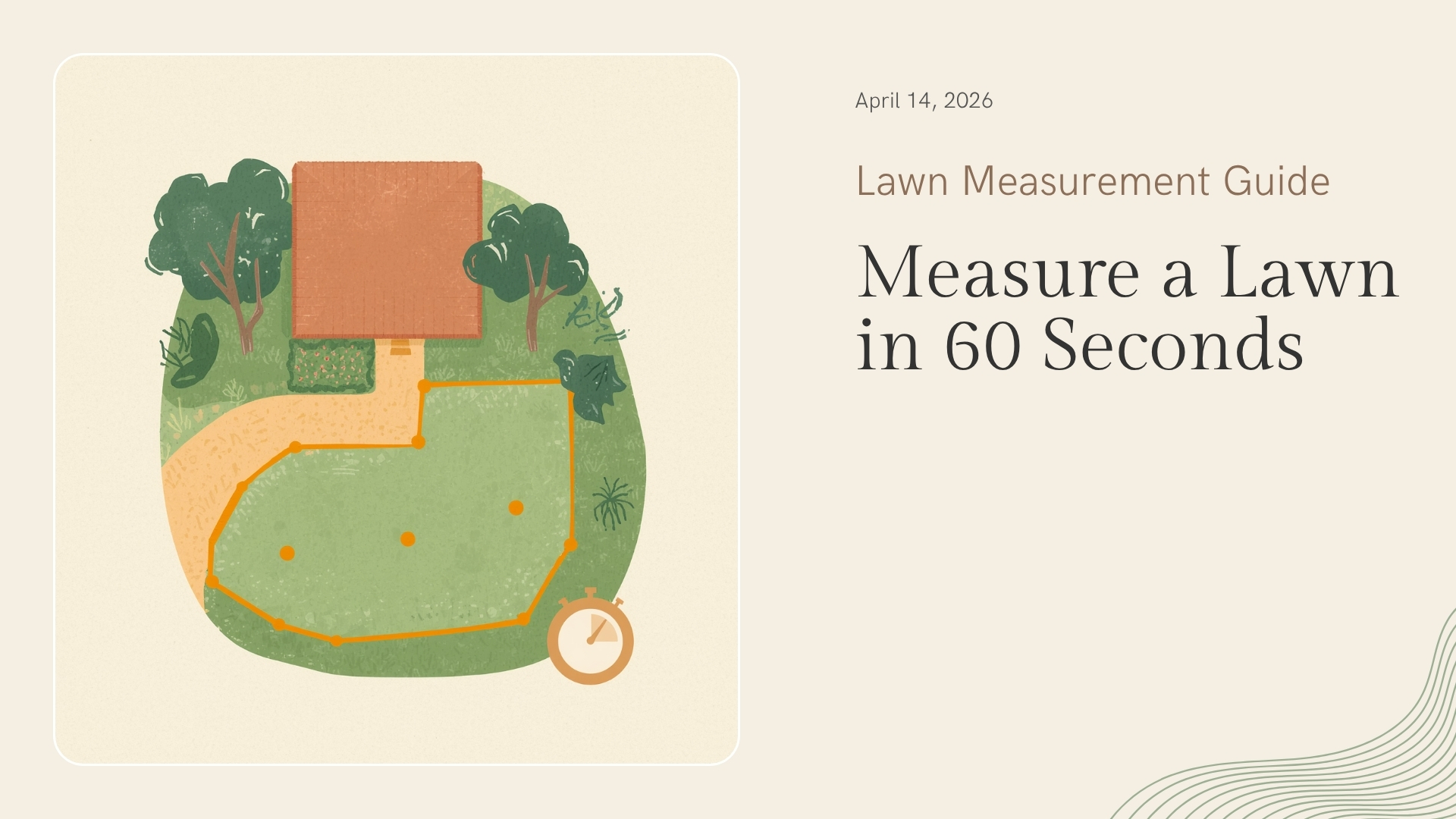
The driveway problem: you pull up to a 6,200 sq ft front yard, the customer wants a number before you leave, and your CRM doesn't know what a lawn is. So you guess. You go low because you don't want to lose the bid, and now you're cutting it for the next eight months at a price that doesn't pencil.
PoweredQuip's measurement tool was built specifically to kill this problem. Here's the 60-second version, on a real Wednesday route.
Step 1 — Open the property
Tap a customer record. Tap "Measure." The map snaps to the property using parcel boundary data from Regrid, so the lot lines are already there as a guide.
Step 2 — Draw the polygon
Trace the corners. Snap-to-close means the last vertex finds the first one — no fiddly tapping. If you nudge a corner, drag the vertex. Total square footage updates live.
Step 3 — Save zones
Most properties aren't one shape. Save a "front" zone, a "back," a "side beds." Each one is reusable on every visit, so when you come back next spring for an aeration quote, the geometry is already there.
Step 4 — Quote it
One tap turns the square footage into a quote line item. You set the rate per thousand square feet once. PoweredQuip multiplies. Send the branded estimate to the customer's phone before you back out of the driveway.
Total elapsed time on a real route last week: 47 seconds. The customer signed the quote before I made it back to the truck.